
Updated: February 3, 2026 (pricing and features can change always confirm on the official product page at checkout).
If you keep overriding phone limits (“just 5 more minutes”), Brick targets one thing: real friction. It uses a small tap-to-activate physical device + an app to block distracting apps (and their notifications) until you intentionally “unbrick.”
Quick verdict (informational, not hype)
Brick can work very well if you:
- bypass Screen Time / Digital Wellbeing limits,
- doomscroll on autopilot,
- want a middle ground between a dumb phone and “do nothing.”
Brick won’t fix everything by itself. If stress, anxiety, burnout, or avoidance drives your scrolling, Brick works best when you pair it with a simple routine (templates below).
What Brick is (2–3 lines)
Brick is a subscription-free app + a physical “key” you tap with your phone. It blocks selected distracting apps and notifications so your phone feels useful again—until you choose to unlock.
How Brick works (step-by-step)
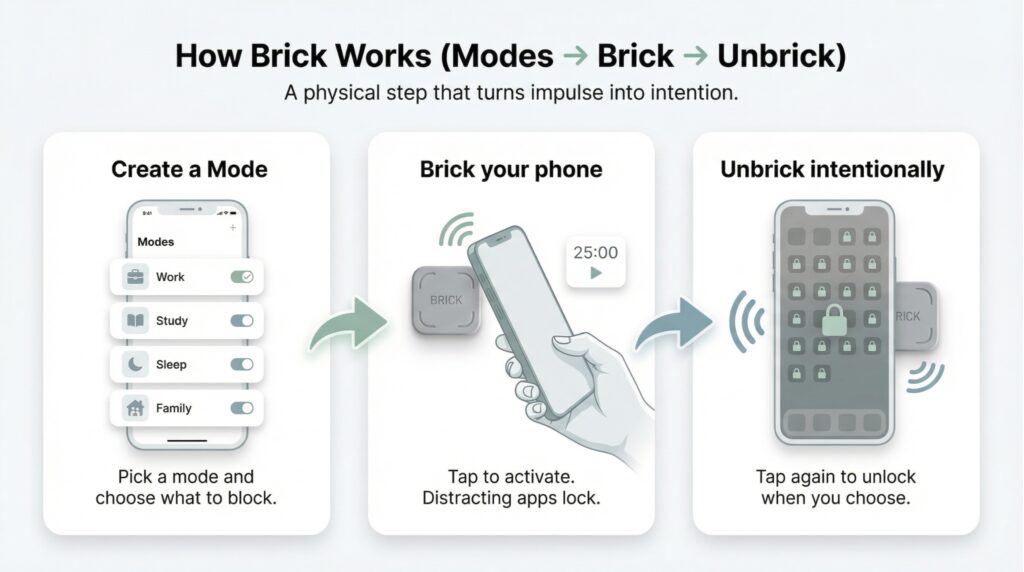
- Create a mode (Work / Study / Family / Sleep, etc.).
- Choose what to block (or choose what to allow—Brick blocks the rest).
- Brick your phone:
- Tap your phone to the physical Brick to activate, or
- “Brick” from anywhere by pressing and holding the in-app Brick button (you still need the physical Brick to unbrick in the normal flow).
- Stay focused while Brick runs your session.
- Unbrick intentionally by tapping your phone to the Brick again.
That “walk back to the Brick” moment matters. It turns an impulse into a decision.
Key features that matter
1) Custom modes (Work/Study/Family/etc.)
Brick supports up to 10 custom modes. This matters because most people don’t need “no phone.” They need “no TikTok during work” or “no Instagram in bed.”
2) Emergency Unbricks (backup access)
Each Brick includes 5 Emergency Unbricks. You can regain access without the physical Brick if you forget it or lose it. Brick positions these as emergencies—not daily use. If you use them all, Brick says you can request a reset through a form (not instant).
3) No subscription / lifetime access
Brick describes the app as subscription-free (“buy once, use forever”).
4) Strict Mode (anti-loophole)
Brick says Strict Mode prevents deleting the Brick app. Brick also says it helps reduce common settings-based workarounds. It won’t make your phone “unbreakable,” but it can remove the easy exits.
Price + what you get (current)
- $59 for one Brick (current listing price on Brick’s store page).
- You may see bundles/discounts (like multi-Brick offers). Confirm the live price at checkout.
- 30-day return window for a full refund (per Brick’s return policy).
- What you get: the physical Brick + full app access (no extra fees).
- If you’re thinking about trying Brick, you can get it here. This link gives you 10% off: [Brick Official Store]
Compatibility and what you can block
Brick supports:
- iOS 16.2+
- Android 12+
What Brick can block:
- On iPhone: Brick says it can block any app except Phone (Apple limitation). It can also block selected Safari sites from Apple’s approved list.
- On Android: Brick says it can block any app except Phone and Launcher.
Who should buy it (and who shouldn’t)
Brick is a strong fit if…
- You hit “Ignore/Skip” on built-in limits without thinking.
- You want your phone to keep essentials (maps, messages, camera) while blocking the apps you regret.
- You scroll most in predictable windows (work hours, bedtime, mornings).
Brick is NOT ideal if…
- You want total lock-down with zero exceptions (Brick still allows Emergency Unbricks and flexible configuration).
- Your main issue is avoidance, not distraction (you still need a replacement habit).
- You hate relying on a physical object (you usually must return to it to unbrick).
Pros and cons (honest)
Pros
- Real friction: you must “go back” to unbrick, which interrupts autopilot.
- Flexible: modes match real life (Work vs Sleep vs Family).
- No subscription: one-time purchase, lifetime access (per Brick).
- Works on iOS + Android (with version requirements).
- 30-day returns (per policy).
Cons
- If you feel determined enough, you may still find a workaround. Strict Mode aims to reduce this, but no system stops every edge case.
- Platform limits apply (example: iPhone Phone app can’t be blocked).
- Emergency Unbricks are limited (5), and resets take time.
- You must keep track of the physical Brick (especially if you travel).
Brick vs built-in phone limits (why it’s harder to bypass)
Built-in limits often fail because you can override them in seconds. Brick changes the loop:
- Built-in limits: tap “skip” → keep scrolling
- Brick: impulse → you must return to the physical Brick → deliberate unlock
If you only need light support, built-in limits may work. Brick targets the “I bypass limits” crowd.
Setup overview (fast + common problems)
Basic setup flow
- Create an account and activate the Brick.
- Grant Screen Time permissions so Brick can block/unblock apps.
- Create a mode and choose apps/sites to block (or allow).
- Tap the physical Brick (or hold the in-app Brick button) to activate.
Gotchas (this saves people hours)
- iPhone passcode: iPhone setup typically requires a passcode to enable Screen Time permissions. You can remove it after your first brick/unbrick.
- Screen Time conflicts: If apps don’t block correctly, disable other Screen Time restrictions and remove apps from the “Always Allowed” list (conflicts can happen).
- Apple selection limits: iOS can limit how many items you pick in the app selector. If you hit this, choose a mode style that requires fewer selections (for example, allow-list the essentials instead of block-listing everything).
Best “modes” to copy (problem-solving)
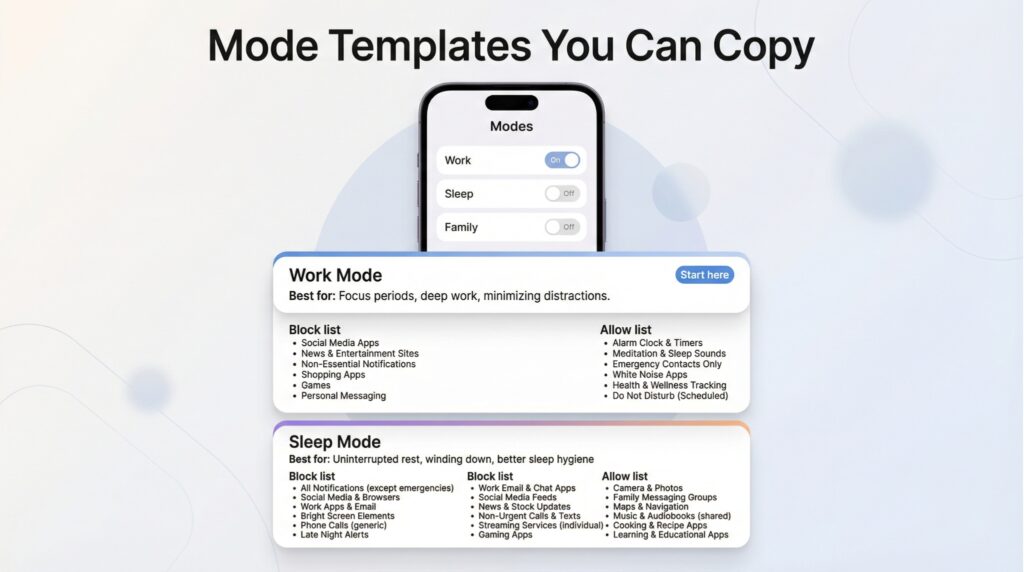
Don’t block everything on day one. Start with your top 2 scroll apps, then expand.
1) Work Mode (2–4 hours)
Block: short video, social, shopping, news, games
Allow: calls, messages, maps, calendar, notes, music/podcasts
Placement tip: brick your phone, then put the Brick in another room.
2) Sleep Mode (last 60–90 minutes)
Block: social, news, email
Allow: alarm, calls, messages (family), meditation/white noise
3) Family / Quality Time Mode
Block: everything except camera, messages, maps
Goal: keep the phone useful without letting it pull you in.
4) Gym / Errands Mode
Block: social, shopping
Allow: music, maps, payments, messages
FAQ
Does Brick work on iPhone and Android?
Yes. Brick says it supports iOS 16.2+ and Android 12+.
Can I brick my phone without the physical device?
Brick says you can brick from anywhere by holding the in-app Brick button for about 5 seconds. You still need the physical Brick to unbrick in the normal flow.
What happens if I lose the Brick?
You get 5 Emergency Unbricks to regain access. Brick treats these as emergencies and offers a reset request via a form (not instant).
What can Brick block?
Brick says it can block iPhone apps (except Phone) plus selected Safari sites, and Android apps (except Phone and Launcher).
Is there a subscription fee?
No. Brick describes the app as subscription-free (“buy once, use forever”).
What’s the return policy?
Brick states a 30-day return window for a full refund (per its policy terms).
Conclusion
If you keep bypassing phone limits, Brick aims to solve that specific problem by making distraction inconvenient. The simplest test stays practical: buy one, run Work Mode + Sleep Mode for a week, and use the 30-day return window if it doesn’t change your behavior.